Tenants → Transfers
Review applications submitted by linked real-estate agents, approve or deny handoff, then complete move-in.
Showing Web screenshots
Switch between web app and mobile app screenshots. Step text is the same; mobile images can be uploaded separately.
Opening Transfers
In the Manager portal go to Tenants → Transfers (or /Manager/Transfers). This queue is only for applications agents submitted to your organization.
Note: Direct applications (no agent) still appear under Applications as before. Transfers does not replace that grid.
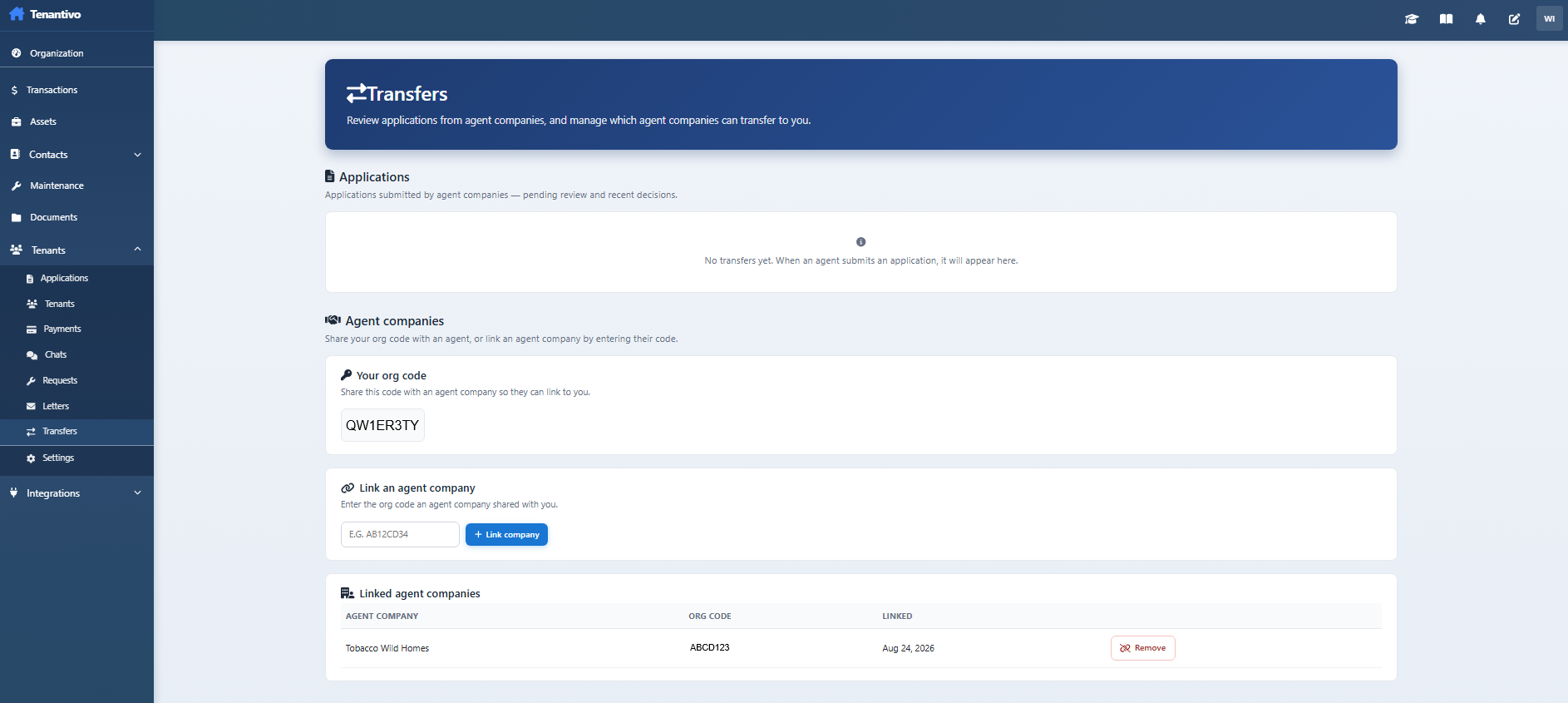

Linking an agent company
Ask the agency for their org code. Add them under Companies / agent authorization so they can submit transfers to you. You can remove a link later; pending transfers already submitted remain until you decide.
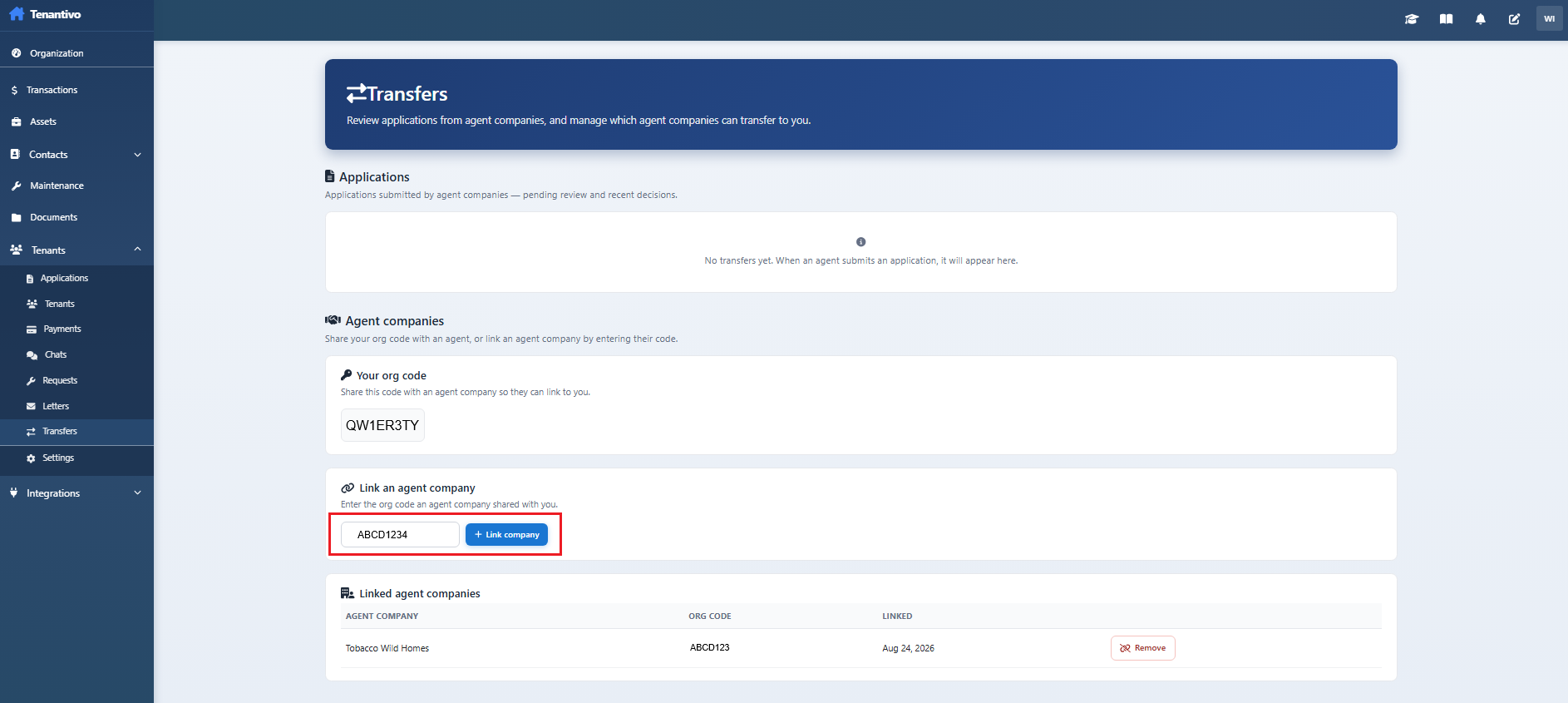

Approving a transfer
- Open a pending transfer and review the application summary.
- Click Approve. Tenantivo copies the application into your org (Part 1 approved) and migrates the applicant login (old agent-org user disabled; new Tenant user in your org).
- Open the new application under Applications and continue move-in like a normal landlord workflow.
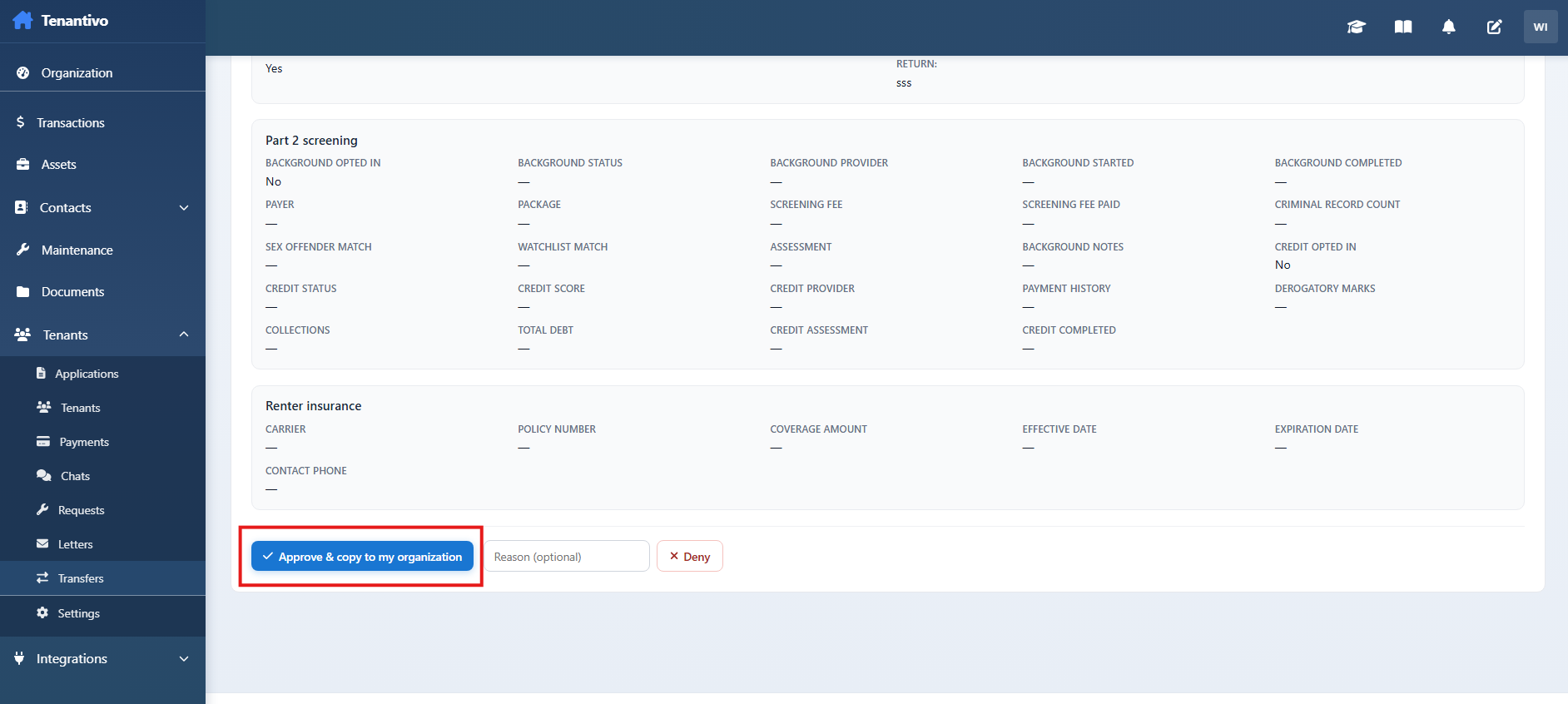

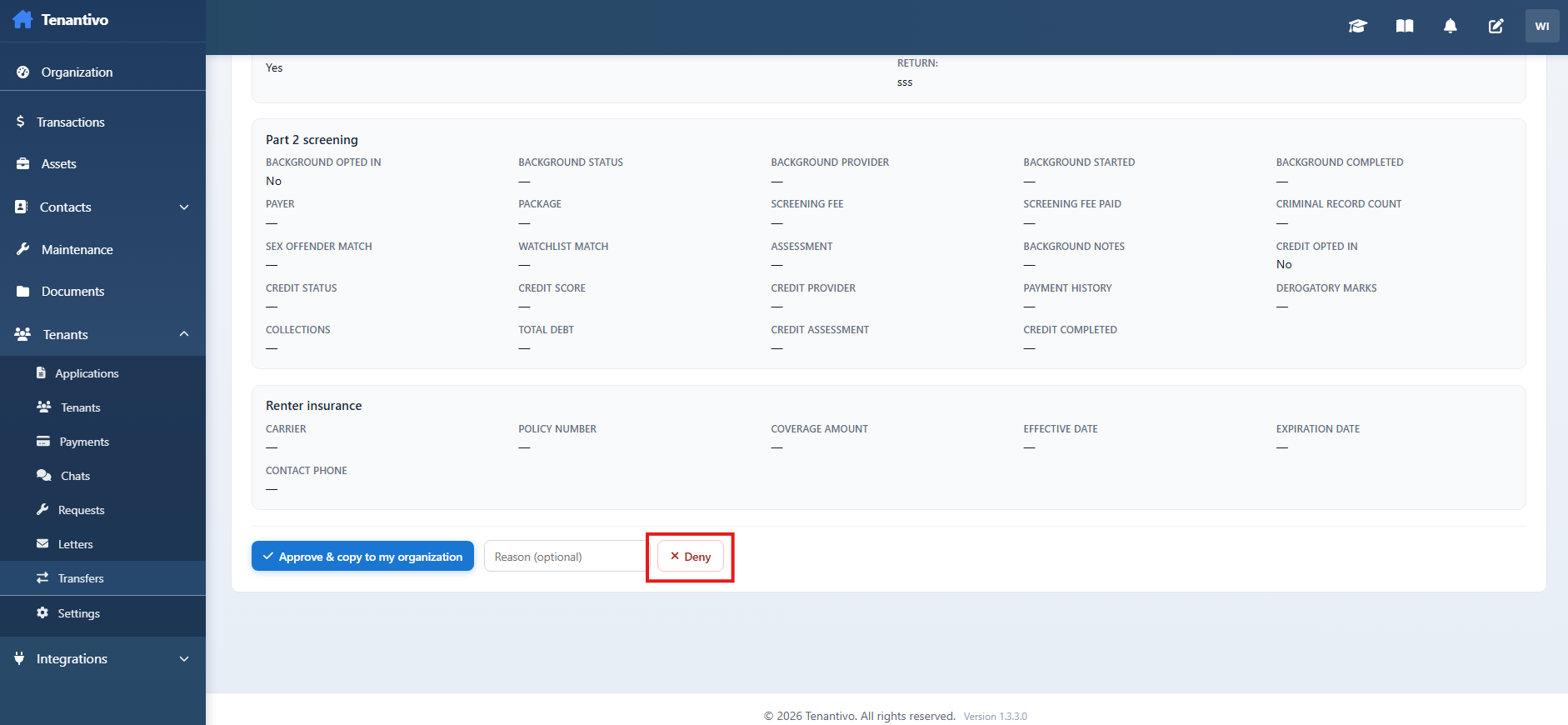
Denying a transfer
Deny notifies the agent and applicant by email. The agent may pull the application back and submit it to a different linked landlord afterward.